Skip to content

Releases · anfra Cloud

Release notes

The hosted version, in beta in the US region

  1. Newanfra Cloud

    Set up a new organization, step by step

    Until an organization has a data app, its admins see the setup instead of an empty home. Choose how to go through it:

    • With an AI agent. Copy one prompt into Claude Code, Cursor or another coding agent. It installs anfra, builds a data app from your data, signs in and publishes.
    • By hand. Three steps, each with the commands to copy: install and sign in, build locally, and publish to your organization.
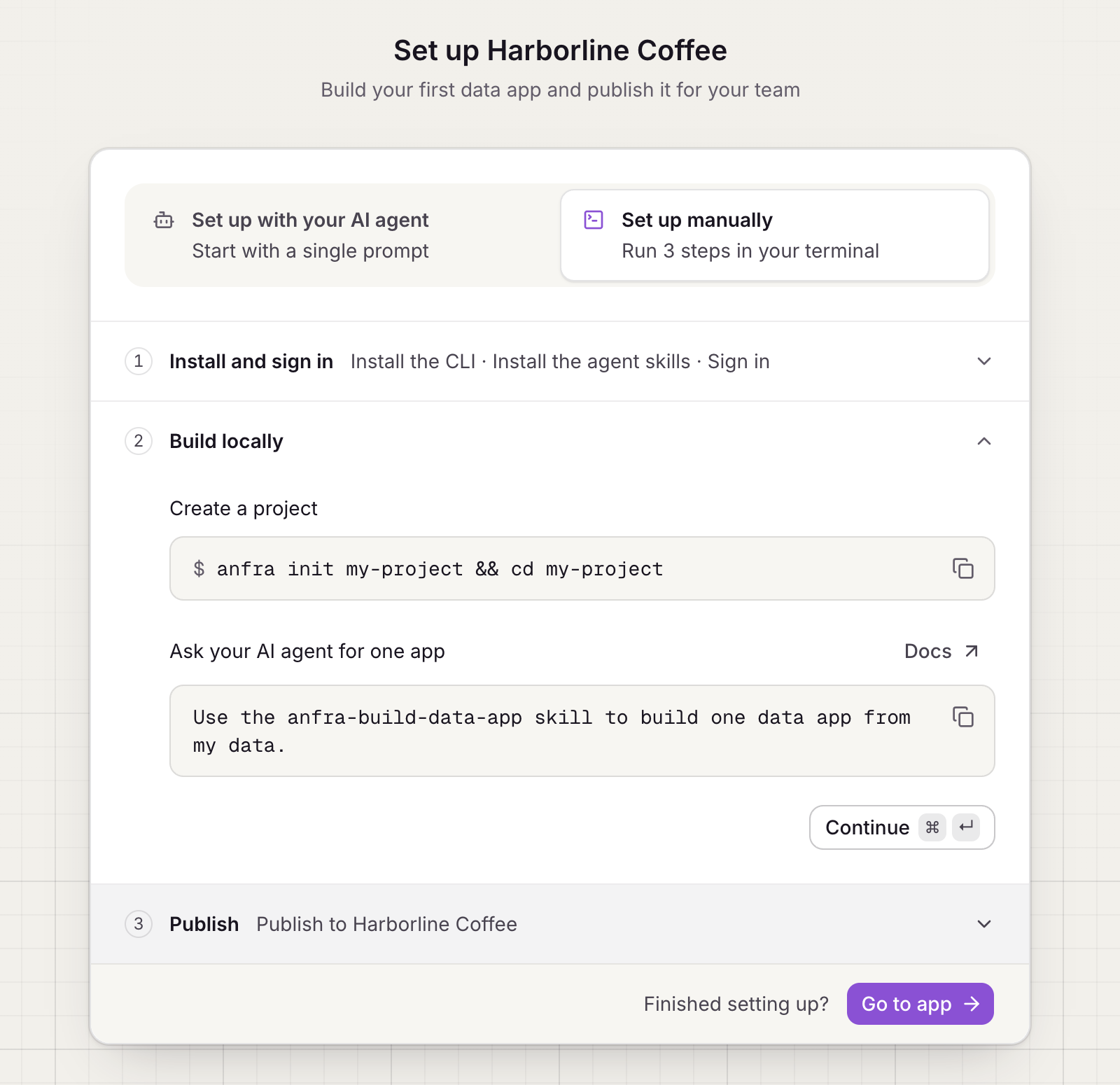
    The Set up Harborline Coffee page with Set up manually chosen: three steps, Install and sign in, Build locally (open, with the anfra init command and a prompt for your AI agent) and Publish, and a Go to app button
    Setting up a new organization by hand

    Each step is ticked off by itself as anfra Cloud sees it done, such as your CLI signing in or the first publish. Signing in is each admin's own step; the others count for the whole organization, whoever did them. Go to the app whenever you like; the setup stays on Home until the first app is published.

    Once the organization has apps, an admin whose CLI isn't signed in sees a "Build your own data apps" card at the foot of the sidebar, with the prompt and the quick start. Dismiss it to hide it.

    Setup is per organization, and only admins see it.
  2. Improvedanfra Cloud

    A refreshed look, in the app and its emails

    The app takes its fonts, colors and components from the same design as the rest of anfra. Menus, selects and the command palette look and behave as they do in anfra serve, and dark mode has its own fills instead of inverted light ones.

    The emails anfra Cloud sends, for a sign-in code and an invitation, are redesigned to match, with the inviting organization's name standing out.

  3. Newanfra Cloud

    Connect Claude and other MCP clients to anfra Cloud

    Copy your MCP server URL from Settings → Connections and add it to an MCP client such as Claude or Cursor:

    https://us.anfra.ai/mcp
    

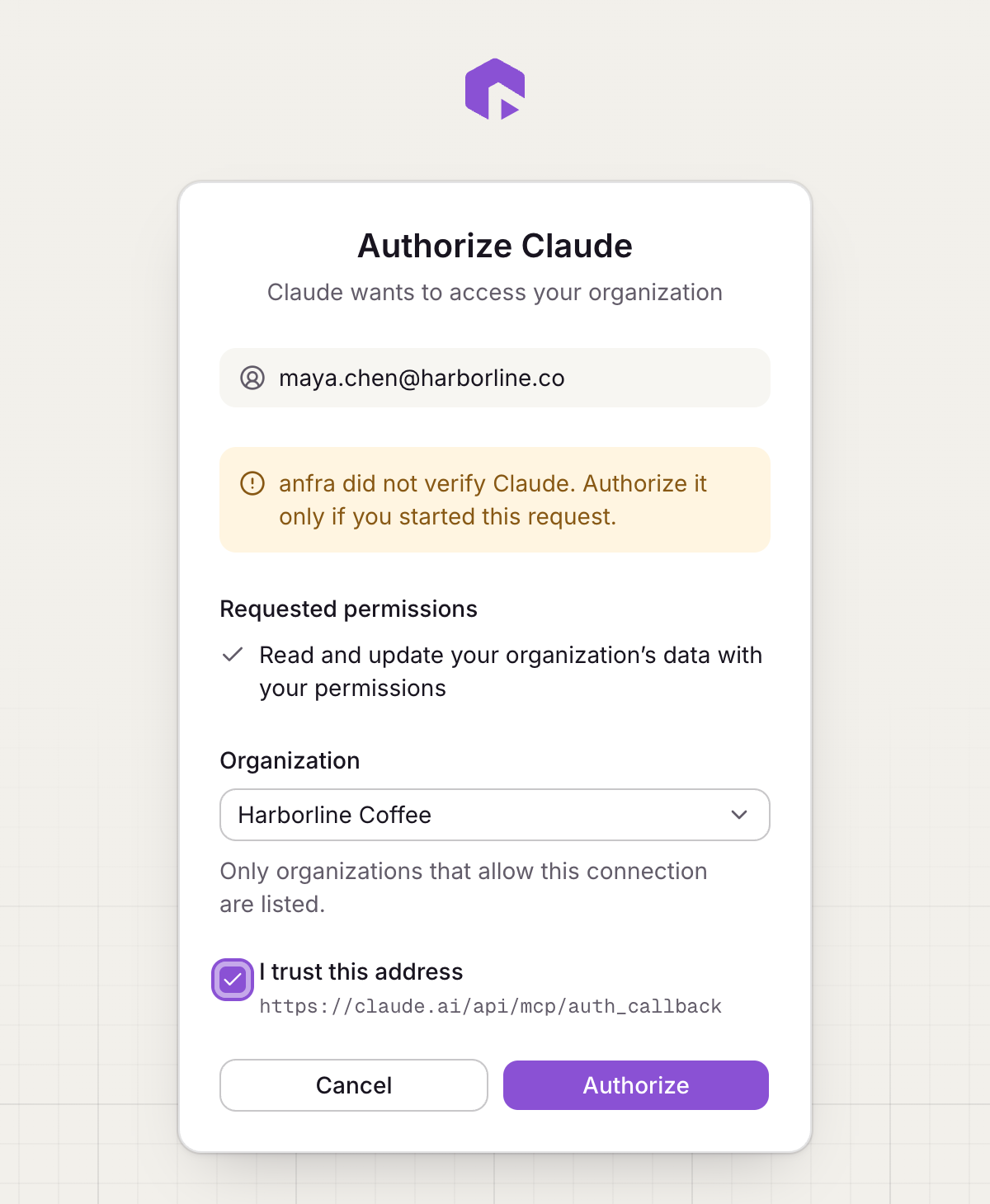
    The client opens anfra Cloud in your browser. Sign in, choose the organization to connect, and authorize. The client then searches, inspects and queries that organization's semantic layer as you, under your role: it sees no more than you can.

    The Authorize Claude page: the signed-in email, the requested permission to read and update the organization's data with your permissions, an Organization picker set to Harborline Coffee, the callback address to trust, and Cancel and Authorize buttons
    Approving Claude for one organization

    Each approval is for one organization. To connect another, add the server again. The client shows in Settings → Connections, where you can revoke its access.

  4. Newanfra Cloud

    Control MCP access for your organization

    In Settings → MCP, an admin decides how AI clients may connect to the organization.

    • MCP access. Turn it off and no one can connect a new MCP client, and connected ones stop working. The CLI keeps working. Turn it back on and members can reconnect.
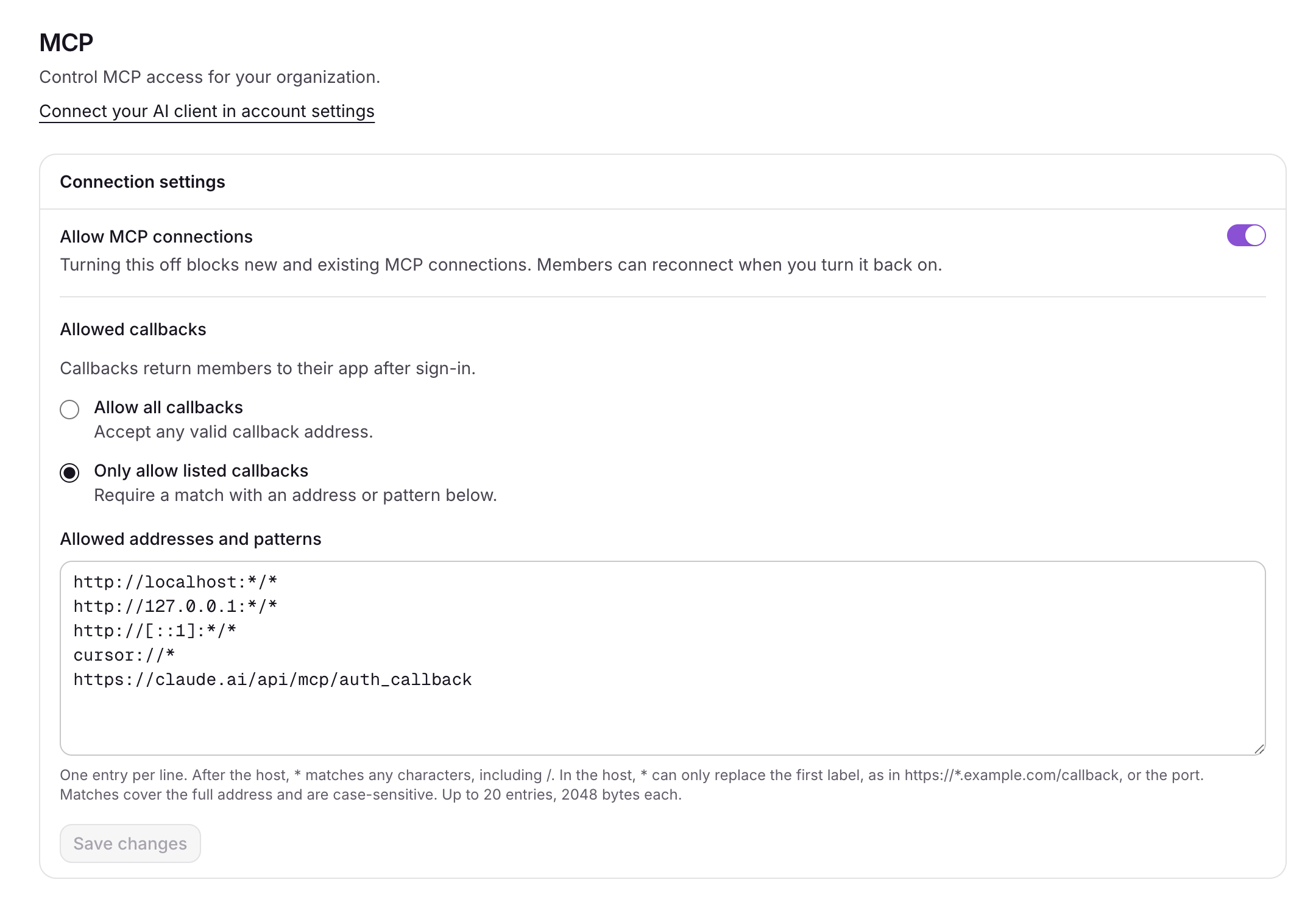
    • Callback addresses. By default any client may connect. Switch to Only allow listed callbacks and new connections, the CLI's included, are approved only for the callback addresses you list. * matches anything. The list starts with local addresses, such as http://localhost:*/*, and cursor://*.
    Settings, MCP: Allow MCP connections switched on, Only allow listed callbacks chosen, and the allowed addresses http://localhost:*/*, http://127.0.0.1:*/*, http://[::1]:*/*, cursor://* and https://claude.ai/api/mcp/auth_callback

    The allowlist applies to new approvals. Tools already connected stay connected; revoke them from Settings → Connections.

  5. Newanfra Cloud

    Jump anywhere with the command palette

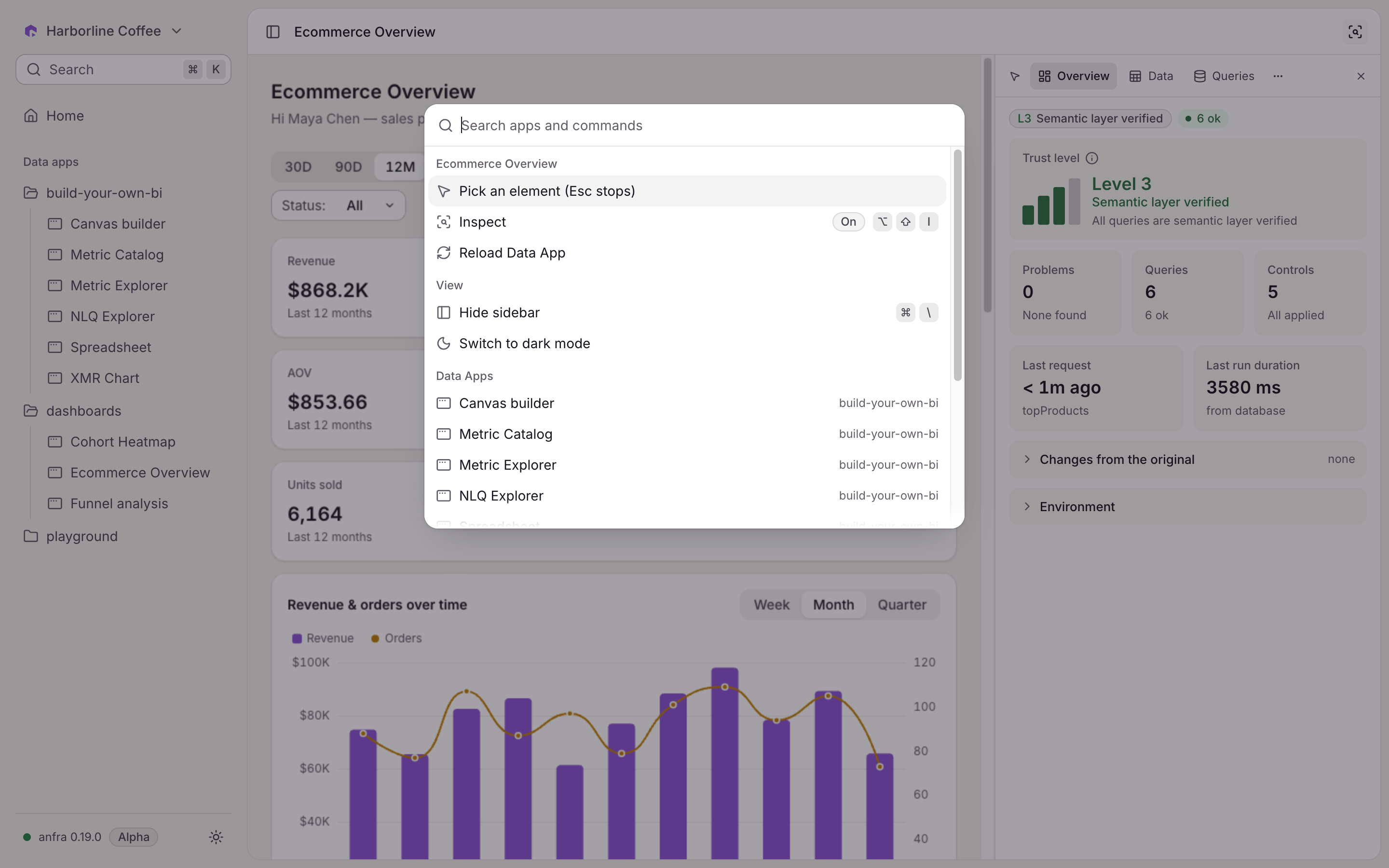
    The command palette lists every data app in the organization, and the view commands, such as toggling the sidebar. On a data app's page, the app's own commands come first, such as Inspect or a download.

    The command palette open over the Ecommerce Overview data app: the app's own commands first (Pick an element, Inspect, Reload Data App), then view commands (Hide sidebar, Switch to dark mode), then the organization's data apps

    Open it with ⌘K on a Mac or Ctrl+K elsewhere, or with the search at the top of the sidebar.

  6. Improvedanfra Cloud

    A rebuilt sidebar, organization menu and settings

    • Search the organization's data apps from the top of the sidebar.
    • Drag its edge to resize it, or collapse it with a keyboard shortcut. While it is collapsed, point at its toggle to peek at it without opening it.
    • A data app's header shows where it sits, as a breadcrumb of its folders.

    Organization menu

    The organization menu at the top of the sidebar lists your organizations with your role in each, and the account you're signed in as.

    Settings

    Settings now has its own navigation in the sidebar, in two groups: Personal (Account, Connections) for everyone, and Organization (Data sources, Members & roles, Data apps, Plugins, MCP, Jobs) for admins.

  7. Newanfra Cloud

    Choose what your data apps can do

    In Settings → Plugins, an admin chooses which plugins the organization's data apps get. The change reaches every member the next time they load a page.

    PluginDefaultWhat it adds
    CoreAlways onQueries and filter suggestions
    InspectOnInspect in the app's header: a panel with the app's data, queries, structure and definition
    LineageOnWhere each field comes from, in the panel's Lineage tab
    RenderOffDownload the app, or a part of it, as a PNG or PDF
    ExportOffExport a query's full result. Not available in anfra Cloud yet

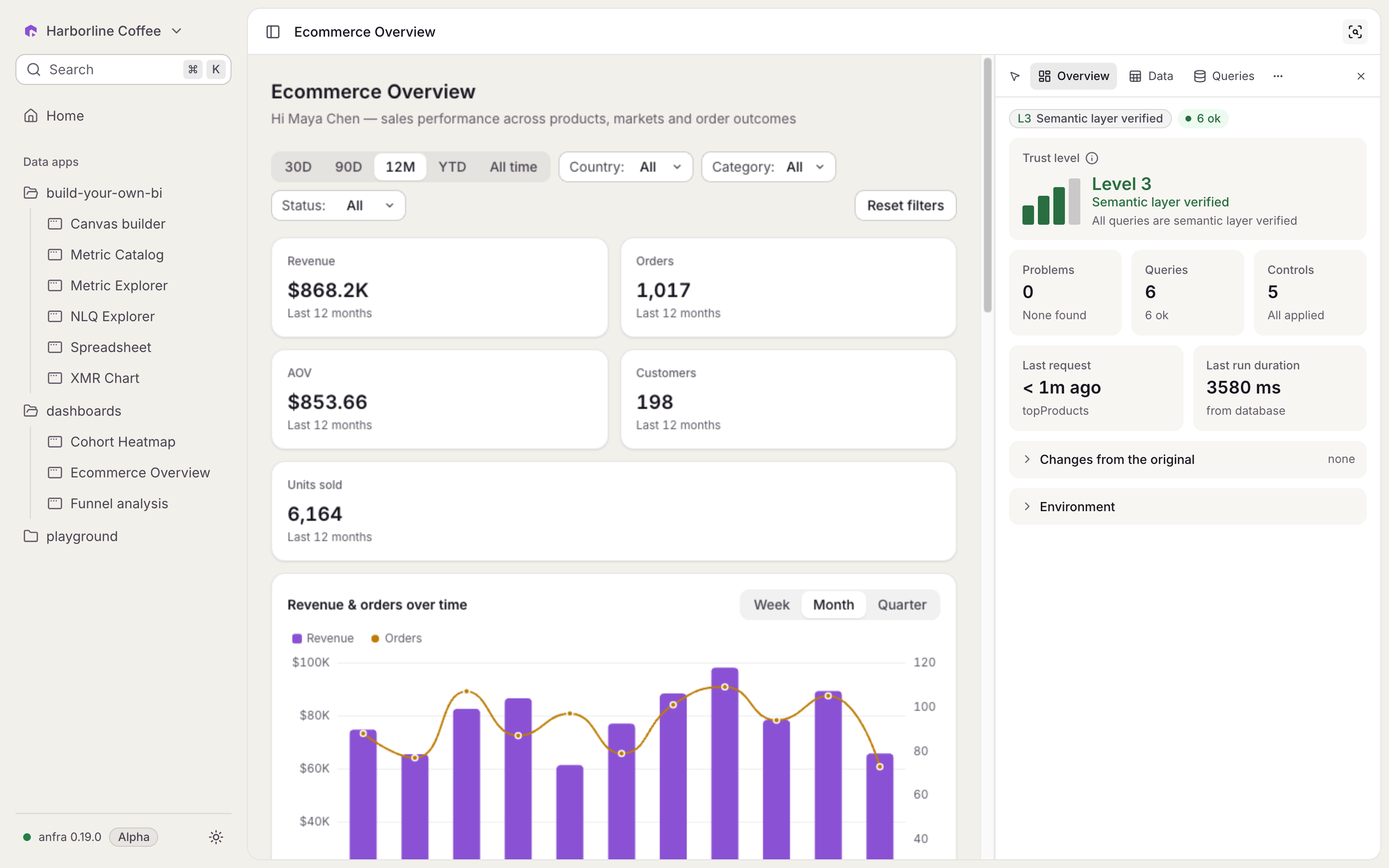
    The panel docks beside the app. It remembers its tab, and you can drag its left edge to resize it.

    The Ecommerce Overview data app with the Inspect panel docked on the right, on its Overview tab: trust level 3, semantic layer verified, no problems, six queries and five controls
    The Inspect panel, docked beside a data app
  8. Newanfra Cloud

    Choose where your data apps load from

    Data apps run under a strict content policy: they load scripts, styles and fonts only from jsDelivr, cdnjs and Google Fonts, and send requests only there, so an app can't send your data anywhere else.

    When your apps need another server, an admin adds its origin in Settings → Data apps, such as https://api.example.com. Each must be an https:// origin with nothing after it, up to 20. The page lists the built-in origins, with what data apps use each for, next to the ones your organization added.

    Allowed origins are the organization's choice, not the project's: publishing doesn't change them. The change reaches every member the next time they load a page.

  9. Newanfra Cloud

    Connect your data warehouse

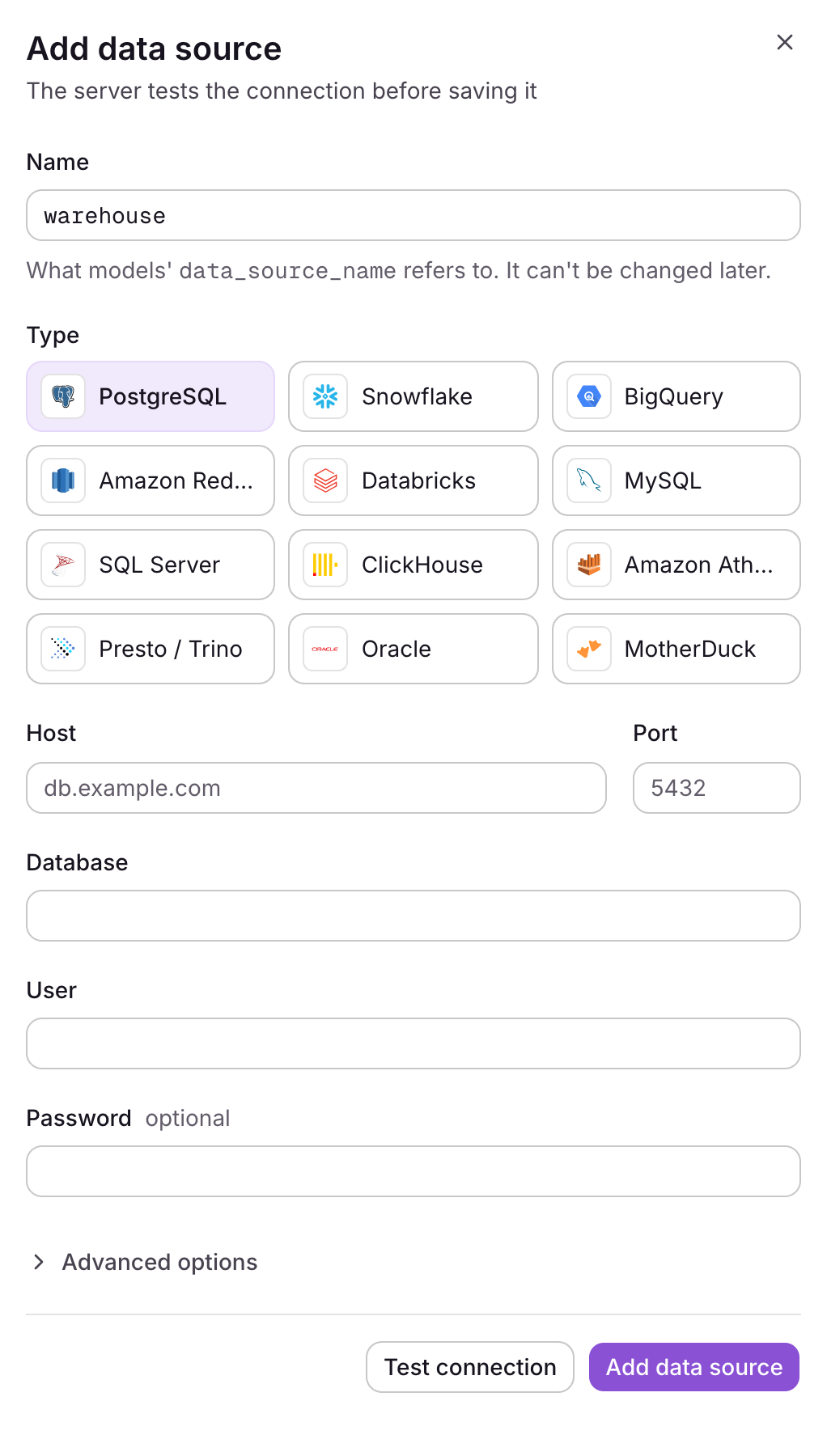
    anfra Cloud connects to PostgreSQL, Snowflake, BigQuery, Amazon Redshift, Databricks, MySQL, SQL Server, ClickHouse, Amazon Athena, Presto and Trino, Oracle, and MotherDuck.

    The Add data source panel: a Name field set to warehouse, a grid of data source types from PostgreSQL to MotherDuck, then Host, Port, Database, User and Password fields, Advanced options, and Test connection and Add data source buttons

    Give a data source the name your project's models refer to, fill in the connection, and save. anfra Cloud tests the connection first and shows what failed on the field it belongs to. Advanced options, such as timeouts and SSL, are tucked away until you need them.

    Saved secrets stay secret

    Once saved, a password or key is never shown again, only that one is saved. When you edit a data source, leave a secret blank to keep it. If you change where the data source connects, such as its host, anfra Cloud asks for its secrets again, so they can't be sent to a new server.

    Only admins manage data sources and can query them in SQL directly. Everyone else queries through the semantic layer.

  10. Newanfra Cloud

    Create organizations and switch between them

    Create an organization with a name and an address, such as https://us.anfra.ai/o/acme. Everything in it is its own: its data sources, the project you publish to it, its data apps and its members.

    You can belong to more than one organization, with a different role in each. Switch between them from the organization menu. anfra Cloud opens the one you used last.

  11. Newanfra Cloud

    Invite your team to your organization

    Invite people by email and choose their role. The invitation is emailed to them, and only that address can accept it: they sign in or sign up with any method, as that address, and join.

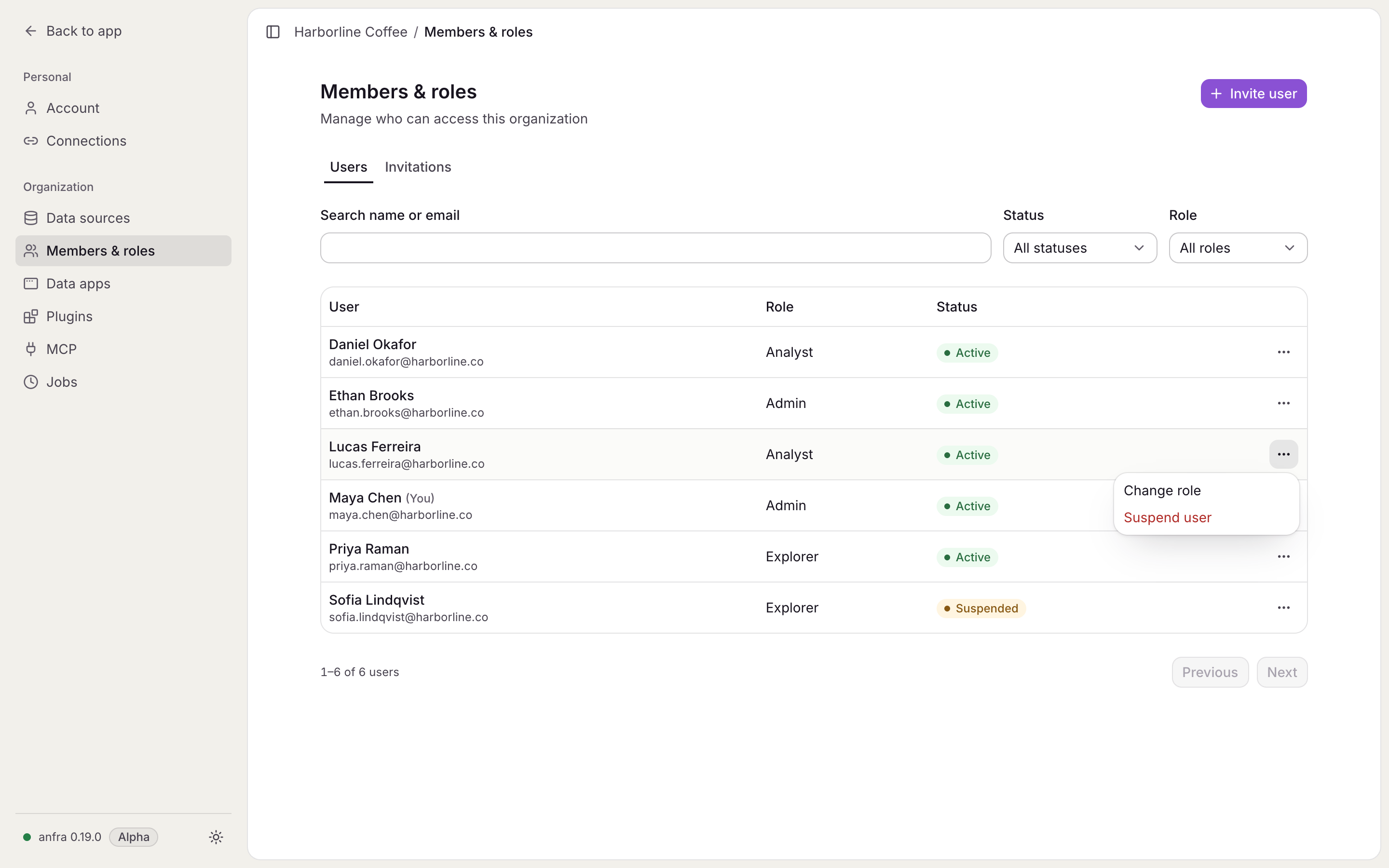
    Settings → Members & roles lists members and invitations, with filters by role and status. From there an admin can:

    • change a member's role,
    • suspend a member, and restore them later,
    • resend an invitation, which starts a fresh seven-day link and stops the old one,
    • revoke an invitation that hasn't been accepted.
    Settings, Members & roles: six members with Admin, Analyst and Explorer roles, one of them Suspended, and a row's actions menu open with Change role and Suspend user
    Members & roles, with a row's actions open

    Roles

    RoleCan
    ExplorerOpen the organization's data apps and query its data through the semantic layer
    AnalystEverything an Explorer can, plus publish the project
    AdminEverything an Analyst can, plus manage data sources, members, settings and jobs, and query data sources in SQL
  12. Newanfra Cloud

    Open your team's data apps in anfra Cloud

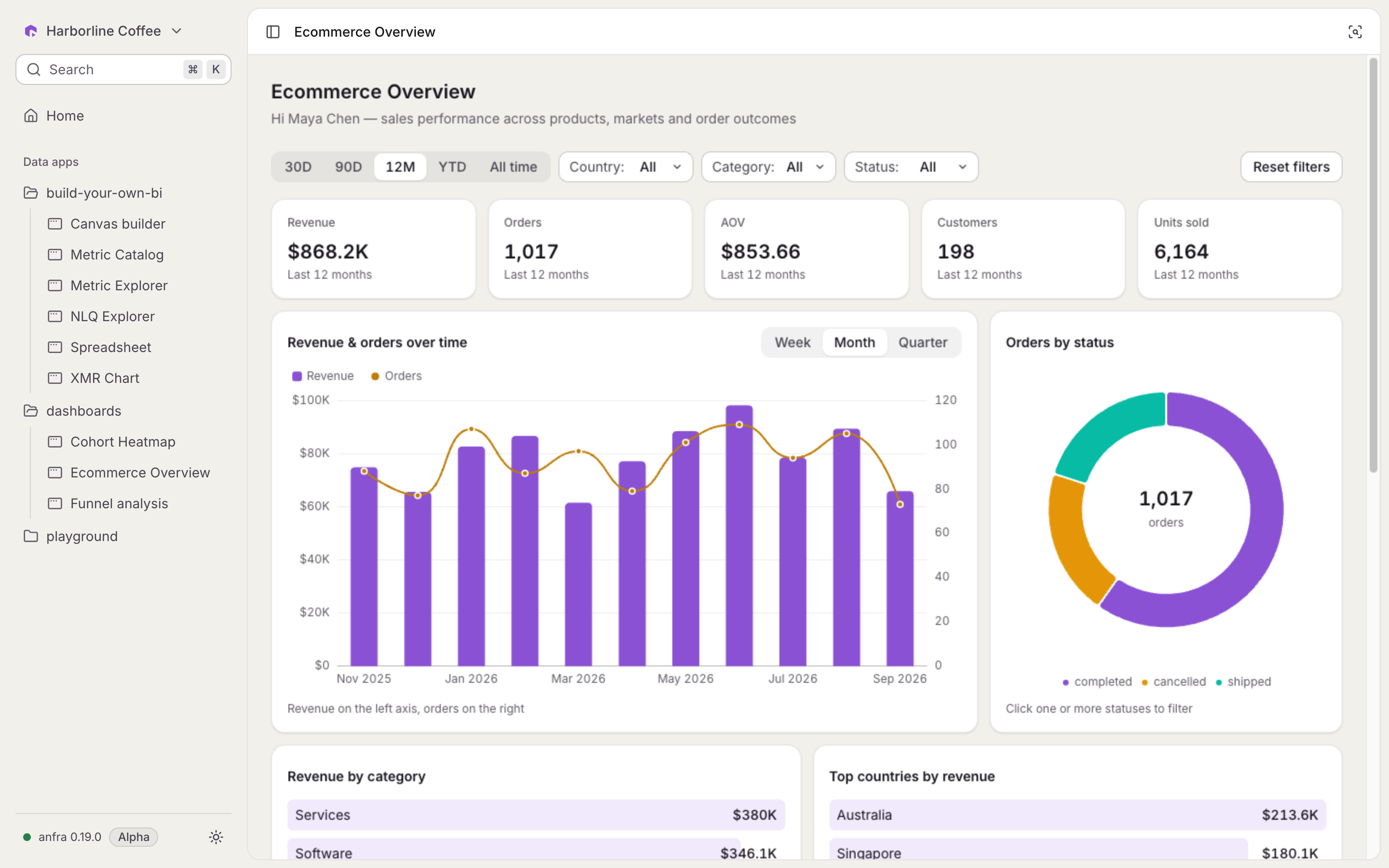
    The sidebar lists the organization's data apps as a tree, with the folders they sit in under apps/. Open one and it runs inside anfra Cloud, against the organization's data.

    anfra Cloud with the Ecommerce Overview data app open: the sidebar lists data apps in folders (build-your-own-bi, dashboards, playground), and the app shows revenue, orders and customer totals, a revenue and orders chart and orders by status

    Every member can open every data app. Its queries run as the person reading it, under their role, so an app never shows anyone more than they could query themselves.

    When an app changes under you

    If someone publishes while you have an app open, anfra Cloud says "This app has been updated" and offers a reload. It never reloads by itself, so you keep your filters until you choose.

  13. Newanfra Cloud

    Publish your project to anfra Cloud

    Build locally with anfra, then sign in to your organization and publish:

    anfra auth login https://us.anfra.ai/o/acme
    anfra publish

    anfra auth login opens your browser to approve the CLI for one organization. anfra publish sends your project's .aml files and everything under apps/, and nothing else: no hidden files, no credentials.

    What a publish does

    • It is validated twice. The CLI checks your project before uploading it, and anfra Cloud checks it again. If anything fails, nothing changes.
    • It goes live at once. Your team queries the new version as soon as the publish returns.
    • It replaces the whole project. A file you no longer have is removed.
    • It doesn't overwrite by surprise. If someone else published since you last did, the CLI asks before replacing their work.

    Each publish is kept as a version, with who published it and their message. Browsing earlier versions isn't built yet.

  14. Newanfra Cloud

    See and revoke the tools that use anfra as you

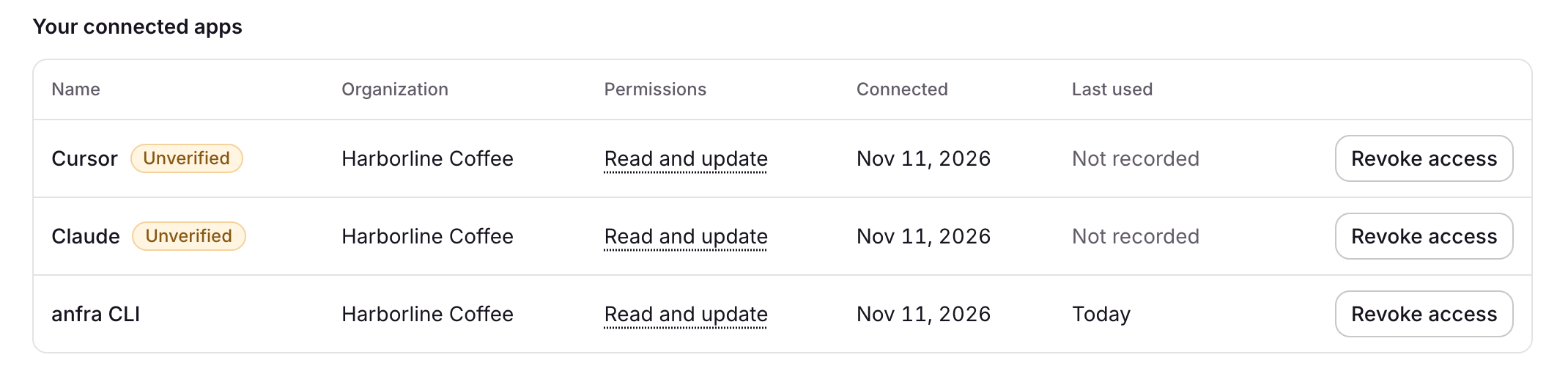
    Every tool that acts as you, such as the anfra CLI or an MCP client, asks you to approve it in the browser first, for one organization. Settings → Connections then lists each one with its organization, when you connected it and when it was last used.

    Your connected apps table with Cursor and Claude, both marked Unverified, and the anfra CLI, each with its organization, permissions, connected date, last used and a Revoke access button

    Choose Revoke access on a tool to cut it off at once. Other tools, and the same tool on another computer, stay connected. A tool anfra didn't verify is marked "Unverified".

  15. Newanfra Cloud

    See and stop your organization's queries

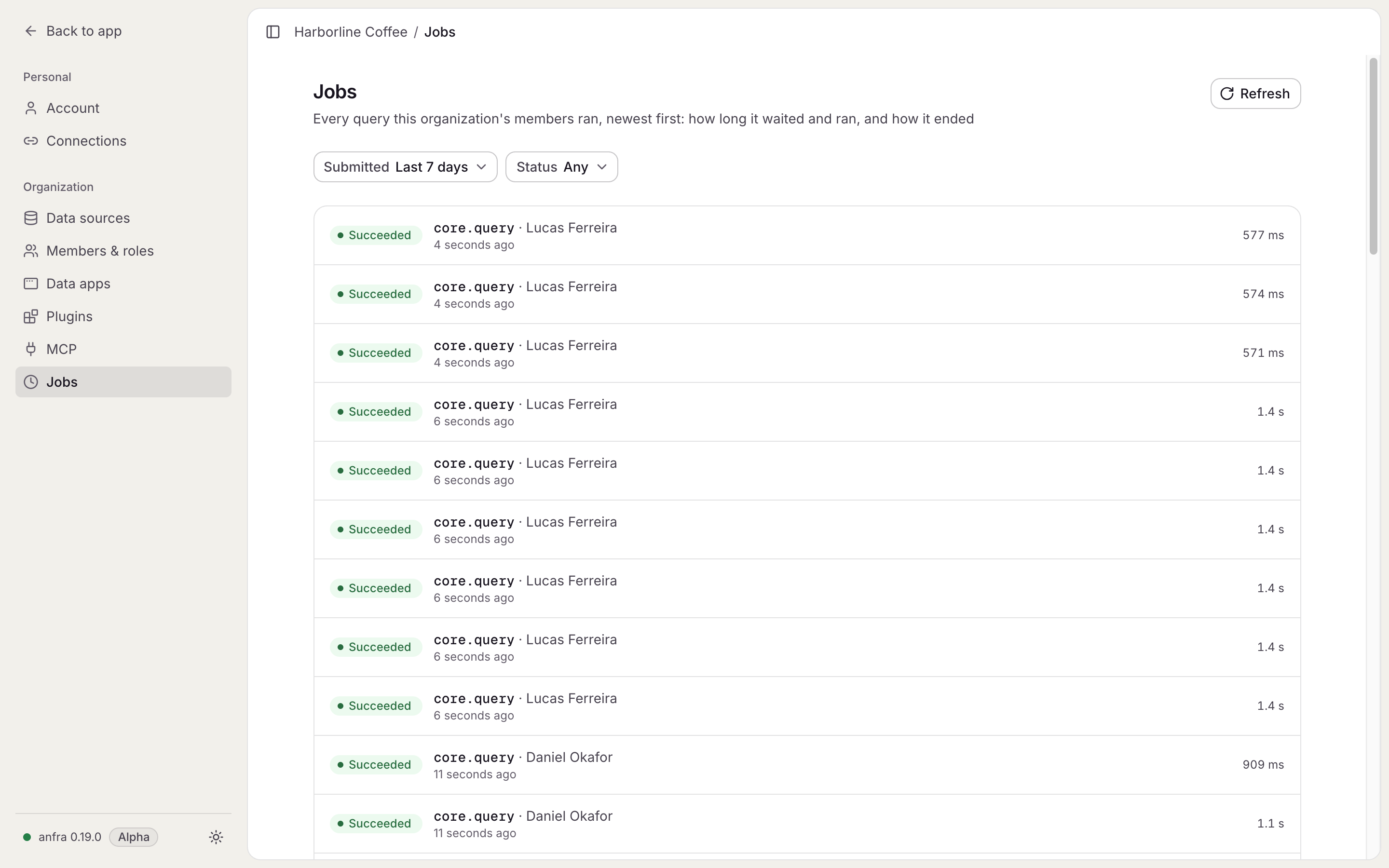
    Admins find Jobs in Settings. Each job shows its kind, who started it, its timeline and the queries it ran. Filter by when a job was submitted or by its status to find one.

    Settings, Jobs: filters for when a job was submitted and its status, and a list of succeeded core.query jobs, each with who ran it, when, and how long it took

    A job that runs too long can be stopped from its page.

  16. Newanfra Cloud

    Sign in with Google, GitHub or an email code

    The sign-in screen offers Google, GitHub and a one-time code sent to your email. Signing in and signing up are the same screen: with no account yet, you get one, then create your organization. The method you used last carries a "Last used" badge.

    The anfra Cloud sign-in screen, Sign in or create an account, with Continue with Google, Continue with GitHub, and an email field with Continue with email

    An emailed code has six digits and lasts ten minutes. It works only in the browser that asked for it.

    Manage your sign-in methods

    Your account settings list your sign-in methods. Add Google or GitHub to an account you made with a code.